1. Title
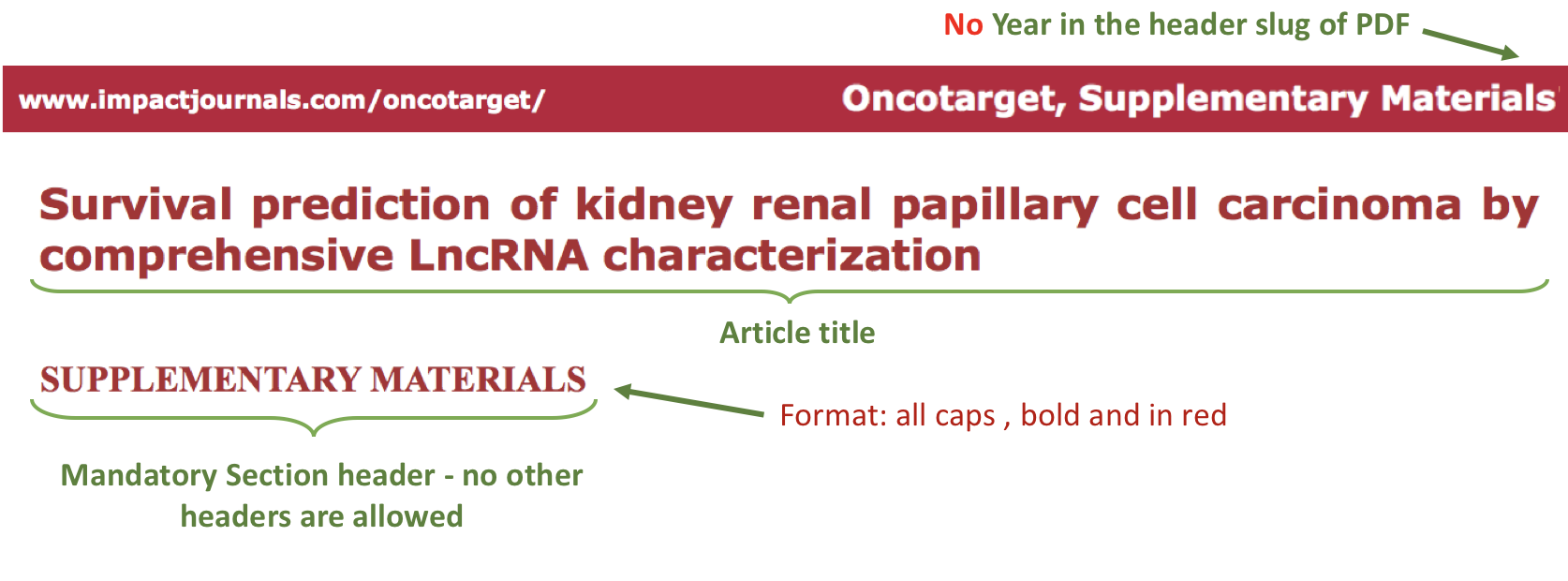
1.1. Check that Supplementary files contain article title.
1.2. Check that there is no Year in the the header slug of the PDF.
1.3. Check that there is a mandatory section header: “SUPPLEMENTARY MATERIALS”. No other options are allowed.
1.4. Check that “SUPPLEMENTARY MATERIALS” header is for formatted in all caps, bold and in red.
2. Text
2.1. Check that font face and size is used consistently through the supplementary file(s).
2.2. Check that there are no blank pages (i.e. all the pages have content)
2.3. Check that there are links/references to the other supplementary files (e.g. tables, videos etc) in the first supplementary file.
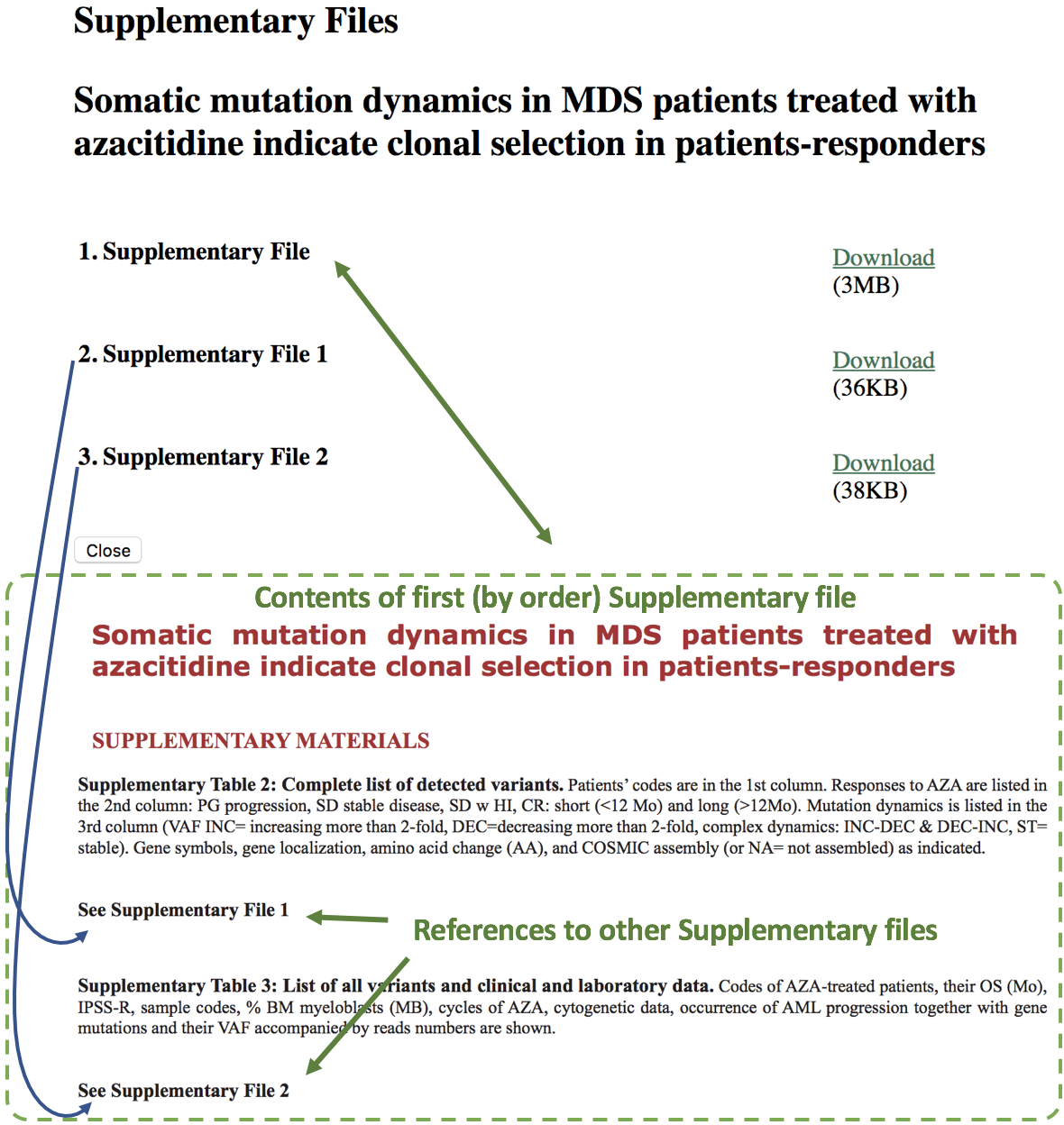
2.4. Check that links to supplementary files (“Download” links) are valid (i.e. you can dowload all supplementary files).
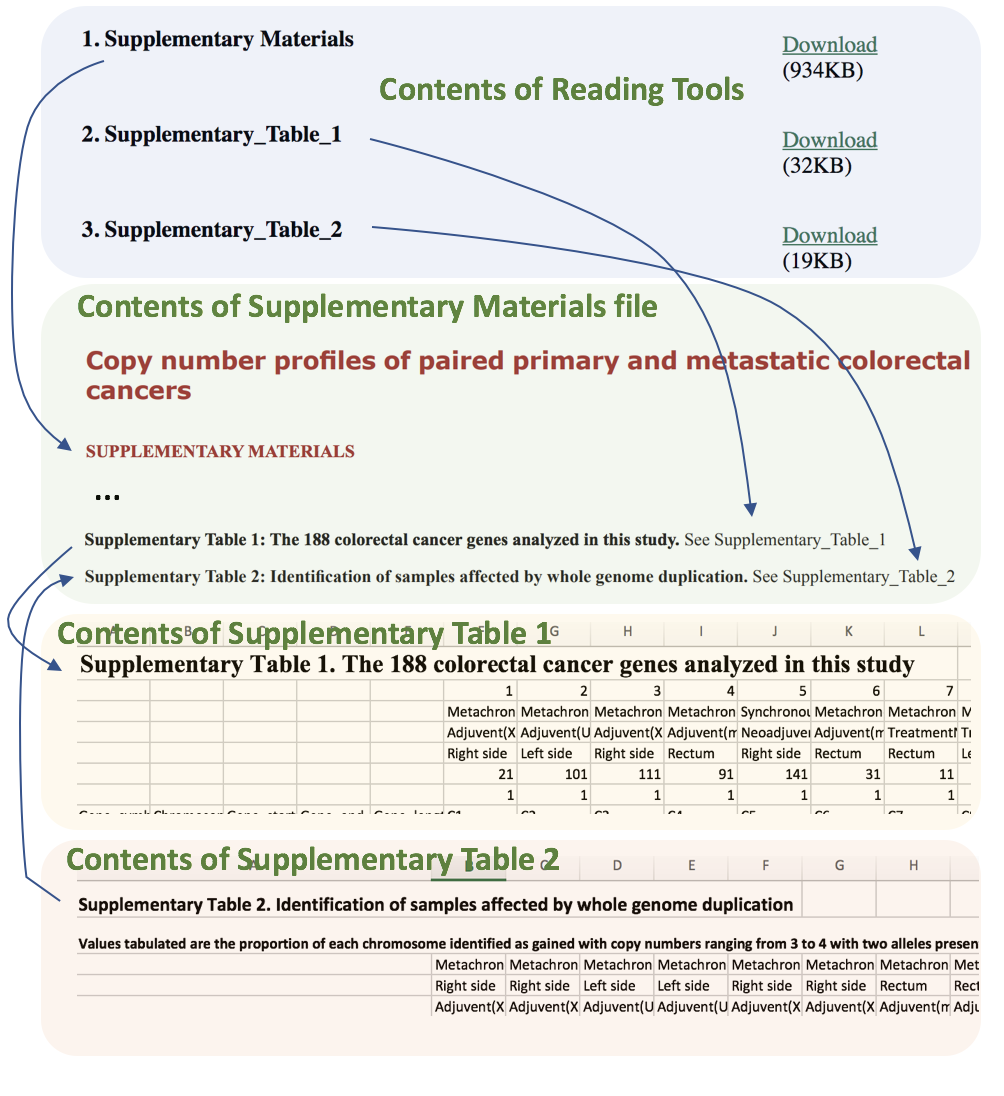
2.5. Check that content of downloaded documents match the references to those documents.
3. Figures
3.1. HTML Figures checks from 11.1. to 11.4 (inclusive) are applicable to Supplementary materials figures with one exclusion: instead of Figure number there should be Supplementary Figure number.
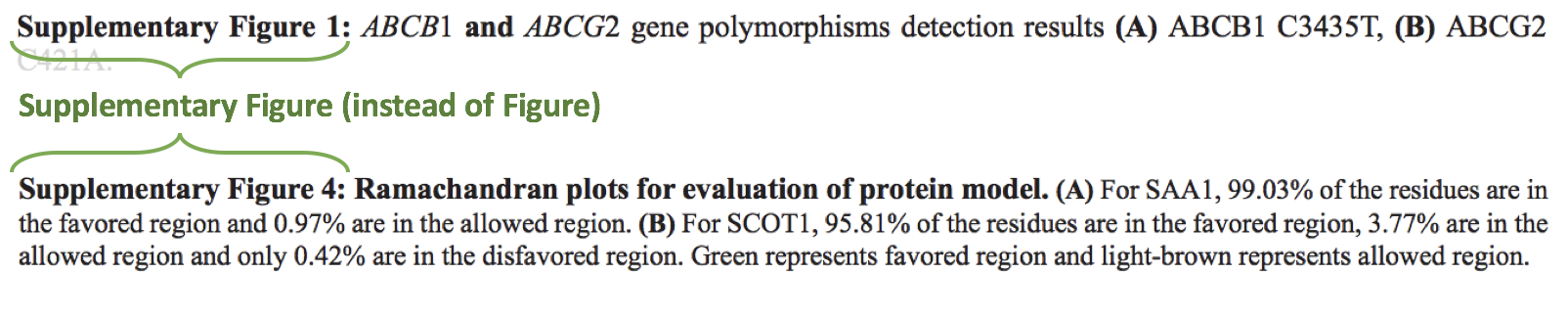
3.2. Check supplementary figures callouts in the article text:
- Check the format of the supplementary figures callouts:
Supplementary Figure 1No other options are allowed.If figure has panels, then callout can have a letter (letter case should be the same as on figure image):Supplementary Figure 1AExamples of callout combinations:Supplementary Figure 1Supplementary Figure 3CSupplementary Figure 2B and 2C (there is no “s” at the end of “Figure” word)Supplementary Figure 5B, 5CSupplementary Figure 1E–1GSupplementary Figure 1A, Supplementary Figure 1B
- Check that Supplementary figure callouts are formatted in plain text.
- Check that each figure has at least 1 callout in the text.
If one or more callouts are missing in the text, please contact author.
4. Tables
Important
If table spans across 3 or more pages, then it is considered as “large table”. For large tables handling instructions, check here.
4.1. HTML Tables checks from 12.1. to 12.5 (inclusive) are applicable to Supplementary materials figures with one exclusion: instead of Table number there should be Supplementary Table number.

4.2. Check table callouts in the text:
- Check the format of table callouts:
Supplementary Table 1Examples of callout combinations:Supplementary Table 1Supplementary Tables 1 and 2 (there is “s” at the end of “Table” word)
- Check that Supplementary table collouts are formatted in plain text.
- Check that each table has at least 1 callout in the text.
If one or more callouts are missing in the text, please contact author.
5. References
5.1. If there are references present in the Supplementary text, then they should be checked in accordance with HTML References checks.
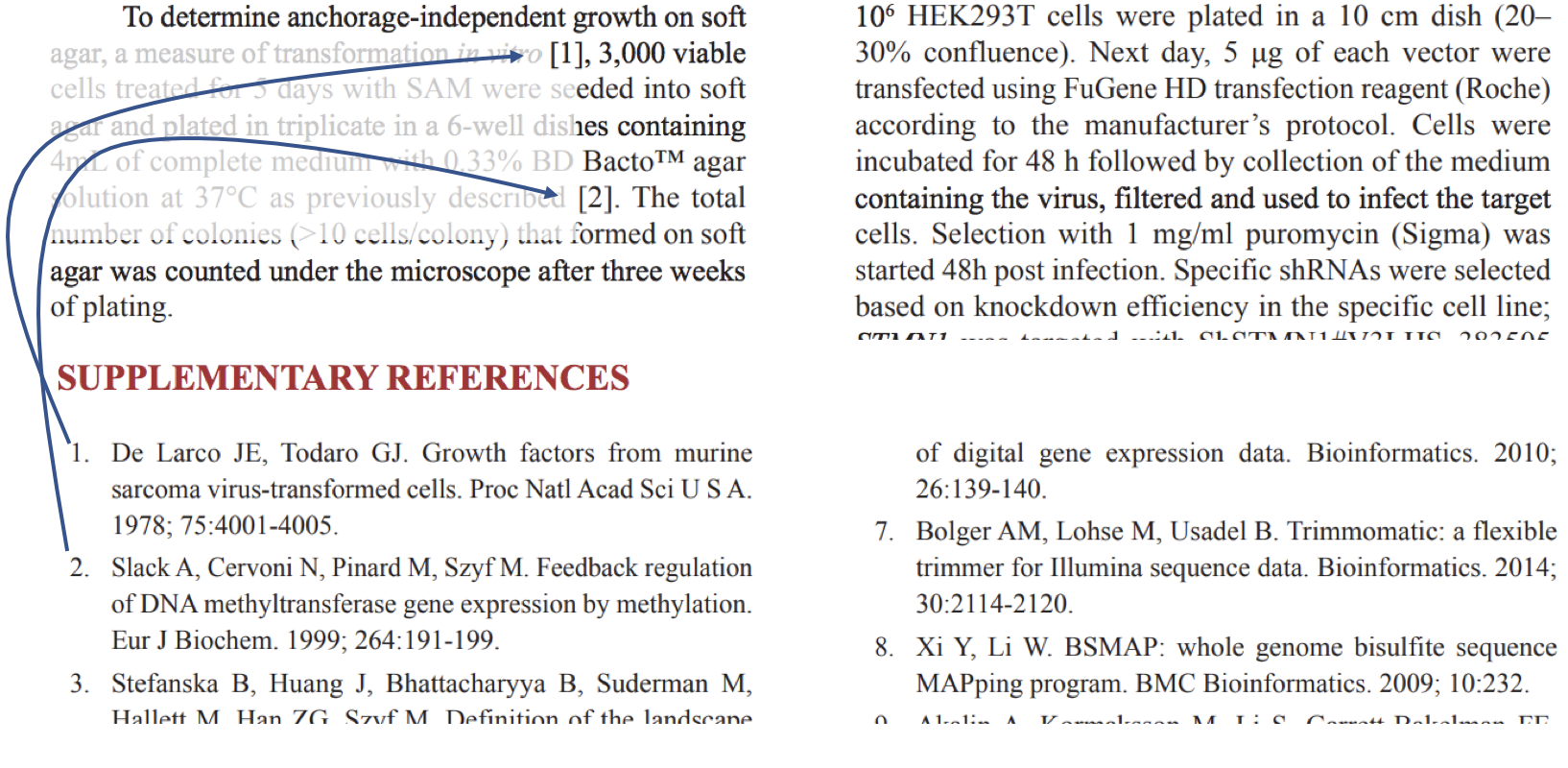
5.2. Check that references in Supplementary Materials have corresponding callouts in Supplementary text.
6. Large Tables
Tables which fit into 2 pages are “normal tables” and should be published as PDF for convenient printing. Tables which span across 3 or more pages are considered “large tables”. Large tables should be published as separate supplementary files (preferably in Excel (.xlsx) format).
6.1. Check whether large table was supplied by the author in PDF format. If so, then please contact the author and ask to provide tables in Excel (.xlsx) or Word (.docx) format. Excel (.xlsx) format is preferable.
6.2. Check whether large table was supplied by the author in Word (.docx) format. If so, check whether large table contains complex formatting (e.g. nested cells, subcategories etc) which is likely to be disturbed by conversion to Excel (.xlsx).
- If conversion to Excel (.xlsx) is feasible, ask Production team to convert the large table in the Word (.docx) format to Excel (.xlsx) format
- If conversion to Excel (.xlsx) is not feasible, then such large table is to be published as a separate Word (.docx) supplementary file.
6.3. Check that tables in Excel (or Word) format have table number and header compliant to HTML Tables check 12.2.